5. Install and test it
Test your mod exactly the way players will: with PulseDepot.
-
Start PulseDepot (install it if you have not), choose the FF13 tab and check the game folder. See First setup.
-
Add your shard. Choose Add mod… and pick
ff13_studio/exports/<name>.cwsfrom your game folder, or drop it on the window. It is listed as SHARD · v1.0.0 with the badge NEW; select it to see the name, description and changelog you entered.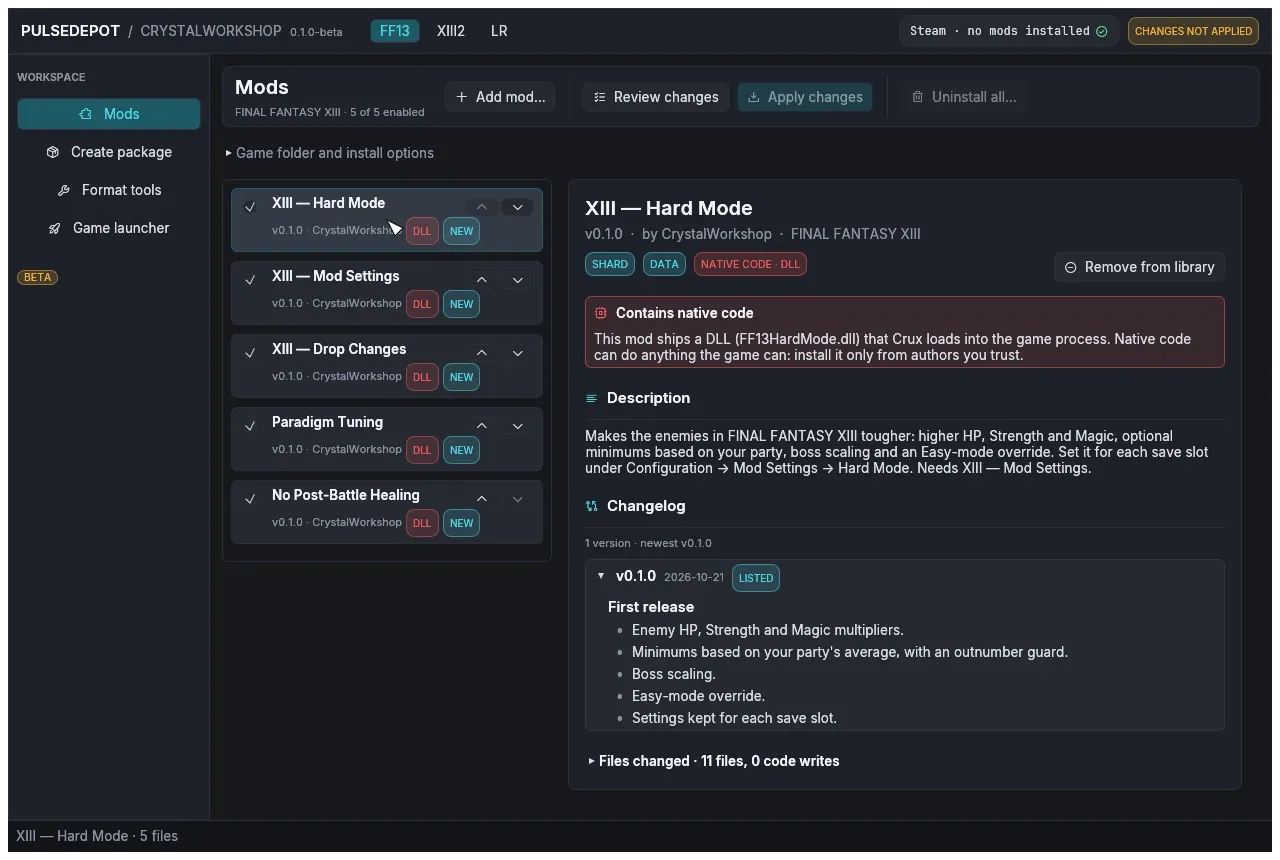
-
Review changes, check that your mod changes
db/resident/item.wdb, then Apply changes with the game closed. PulseDepot installs Crux if needed and writes the Crux image.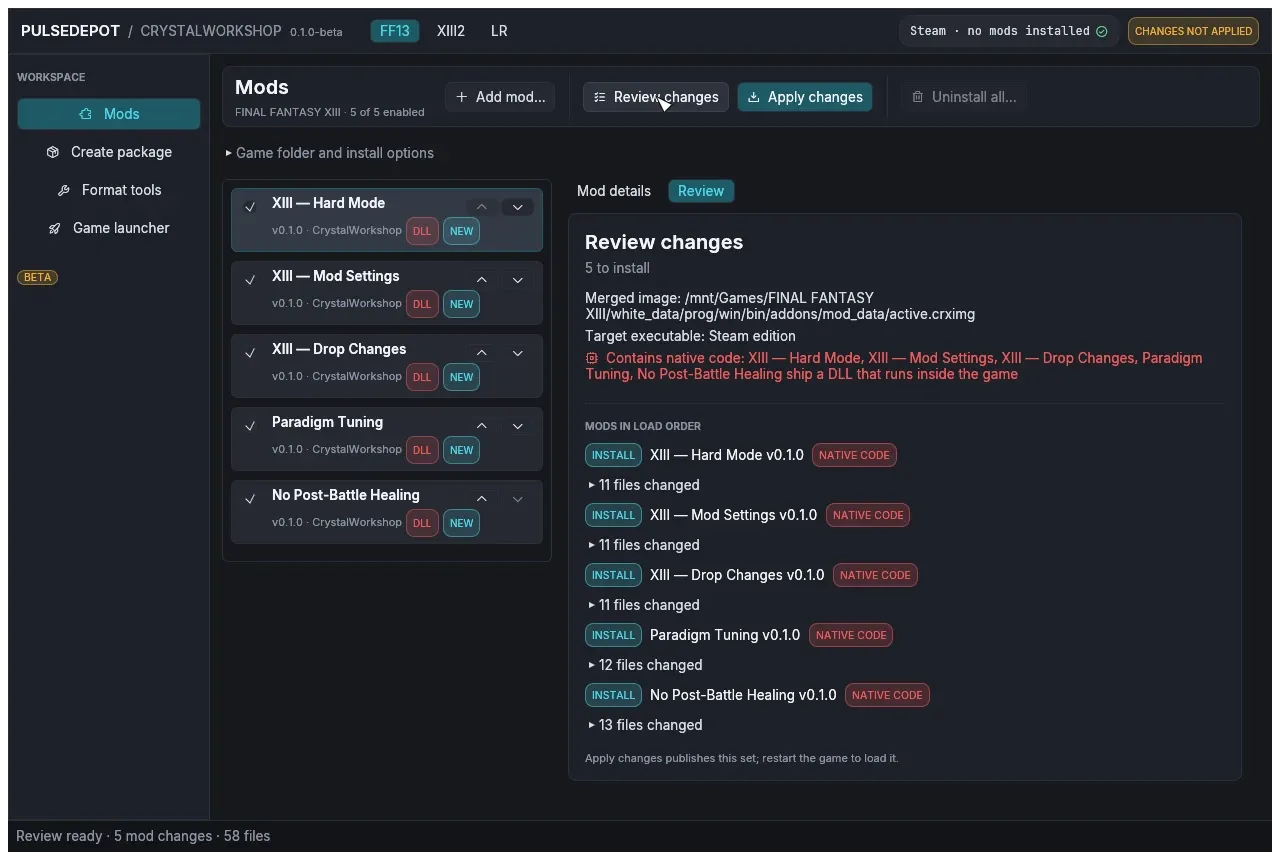
-
Start the game from Steam. On Linux/Proton without NovaFix, the launch options must contain
WINEDLLOVERRIDES="version=n,b" %command%. -
Check the result in game: visit a shop that sells Potions. The price is the new value.
Update or undo
Section titled “Update or undo”- New version: change what you want in CrystalWorkshop, export again with a higher Version and a Changes entry, and add the new file in PulseDepot. It replaces the listed mod and shows your changelog. See Update and remove mods.
- Undo in CrystalWorkshop: revert files on the Changes page.
- Undo in the game: untick the mod in PulseDepot, or choose Uninstall all…, then Apply changes. Your saves are never touched.
Done. You built, installed and tested a mod. Continue with the editing guides: Text (ZTR) is a good next step, then Crystarium and Models.