Simple Mod Export
Goal: turn your pending changes into a CrystalWorkshop Shard (.cws),
then install it with PulseDepot and try it in game.
Prerequisites
Section titled “Prerequisites”- At least one pending change. For example, the Potion price from
Simple DB Edit. The status bar shows
1 pending change, and the top bar shows Export (1). - PulseDepot 0.1.0-beta (its own package), to install the shard.
Steps: review your changes
Section titled “Steps: review your changes”-
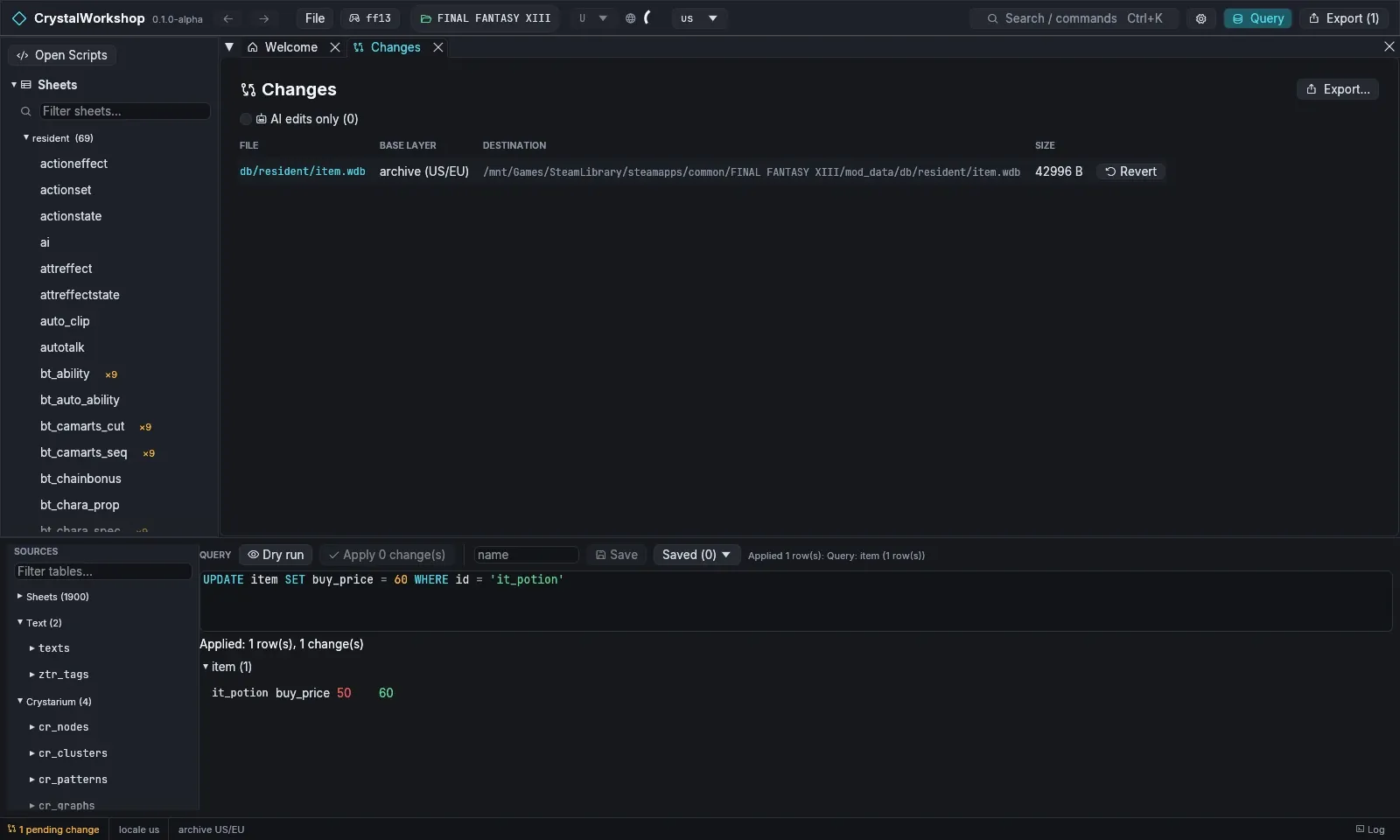
Open Changes: in the navigator, or with Export (N) › the Changes page. It lists each changed file, its base layer (the archive or an earlier mod layer), its destination and its size. AI edits only filters to changes made by AI clients.
-
The Project page (
Ctrl+K› Project) shows the shard project:- metadata;
- native code units;
- attachments;
- filelists.
Steps: build the shard
Section titled “Steps: build the shard”-
Choose Export…. The Export changes dialog plans what will be written. It never writes until you confirm.
-
Choose Shard (.cws). The changed files are stored as patches against the original game files, and staged scripts as Java patches. The other choice, Loose files (mod_data), writes the files straight into the game’s
mod_datainstead. -
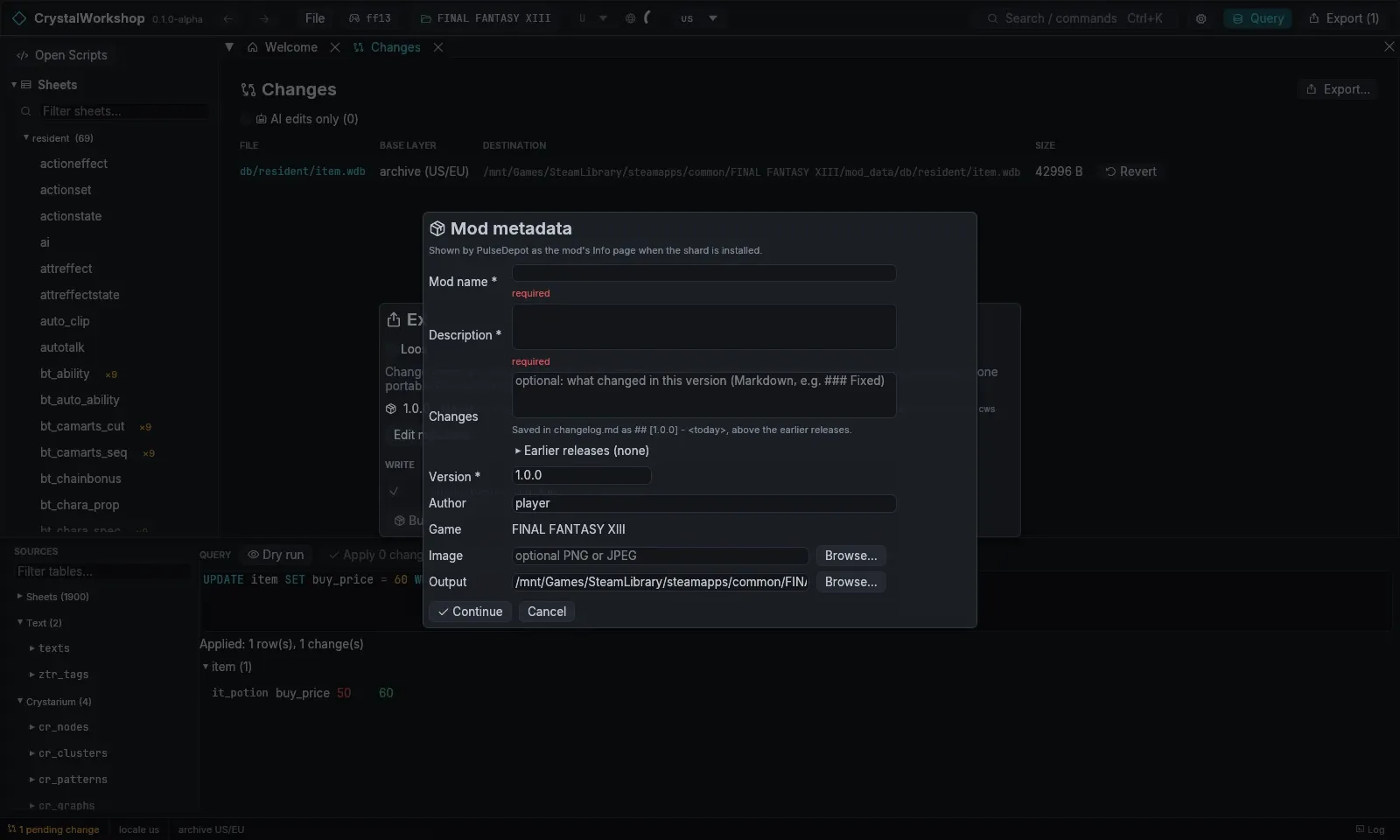
The Mod metadata form opens the first time. Edit metadata… reopens it.
- Mod name and Description are required.
- Changes is this version’s changelog entry, in Markdown such as
### Changedand a list. - Version is required and must be semver, for example
1.0.0. - Author, Game (read-only) and an optional Image are shown on PulseDepot’s details page.
- Output defaults to
<game>/ff13_studio/exports/<name>.cws.
-
Rows marked Unverified are routes that are not proven in game (all of XIII-2 and LR). Tick allow on each one to include it. Not exported (N) lists edits that cannot be shipped and the reason.
-
Choose Build shard (N files). CrystalWorkshop builds the shard, verifies it and writes it. Your changes stay pending, so you can keep working and export again.
Your author key
Section titled “Your author key”The first shard export silently creates your author key in
~/.config/ff13-studio/author/ (the XDG config folder; on Windows, the
matching app-data folder). Each shard carries your project encrypted to this
key. Only you can reopen it as an editable project with File › Open
shard…. Players need no key.
Settings › Author shows the key id and can protect it with a password. Back up this folder. Without the key you cannot reopen your own shards as projects. The installable mod inside each shard keeps working.
Steps: install with PulseDepot
Section titled “Steps: install with PulseDepot”- Start PulseDepot, choose the same game tab, and choose Add mod…. Pick
the
.cws(or drop it on the window). - Choose Review changes, then Apply changes with the game closed.
PulseDepot installs Crux if needed and writes
active.crximg. - Start the game. On Linux/Proton without NovaFix, the launch options must
contain
WINEDLLOVERRIDES="version=n,b" %command%.
See the PulseDepot guide for ordering, conflicts and troubleshooting.
Result
Section titled “Result”The shard is in ff13_studio/exports/, and PulseDepot lists it as
SHARD · v1.0.0. In game, the Potion’s shop price is the new value.
Undo / revert
Section titled “Undo / revert”- In CrystalWorkshop: revert files on the Changes page. Exporting never changes the game archives.
- In PulseDepot: untick the mod, or choose Uninstall all…, then Apply changes. Your saves are never touched.
- To update a mod: export again with a higher Version. PulseDepot replaces the listed mod and shows the changelog.
Related
Section titled “Related”Simple DB Edit · FAQ and Troubleshooting · Glossary · Enabling MCP