
Scene Edit
Goal: open a zone layout (LYB) in the scene editor. Then fly around, select a placement, move it with the gizmo, edit its fields, and add, duplicate or delete placements.
Prerequisites
Section titled “Prerequisites”- A game open (First Run and Game Setup). The scene editor is complete for XIII and Experimental for XIII-2 and LR.
- DXVK and a GPU driver with Vulkan 1.3 support. The scene View renders with the game’s shaders and has no fallback renderer (Installing).
Background
Section titled “Background”A zone’s layout is an LYB file:
- XIII:
scene/lay/sceneNNNNN/bin/sceneNNNNN.win32.lyb. - XIII-2 and LR: an
.xwppack of member layouts, such ass00010a. Pick the member next to the path.
It places background chips, characters, treasure and triggers, lights, sounds, VFX, markers and colliders.
-
Open Scenes in the navigator and pick a scene. This example uses XIII
scene00002(Ctrl+K, then typescene00002). -
The tab has two modes:
- Author: the node tree and fields;
- View: the 3D editor.
Choose View. The scene is staged as the game loads it at zone start. Show all placed draws every placement. Map set picks another map set.
-
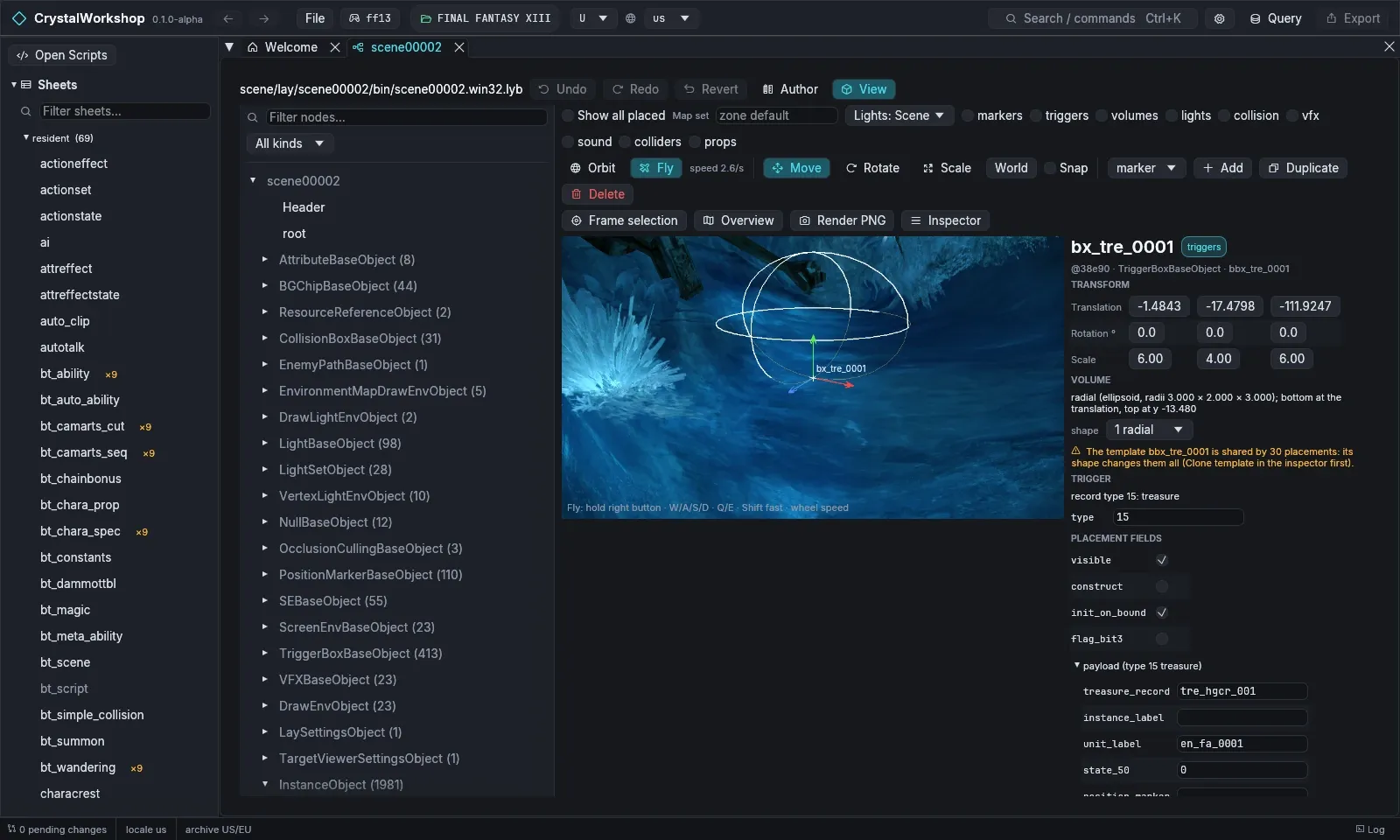
Camera:
- Orbit (the default): drag to orbit, scroll to zoom.
- Fly: free flight.
- Frame selection zooms to the selected placement.
- Overview shows the whole scene from above.
-
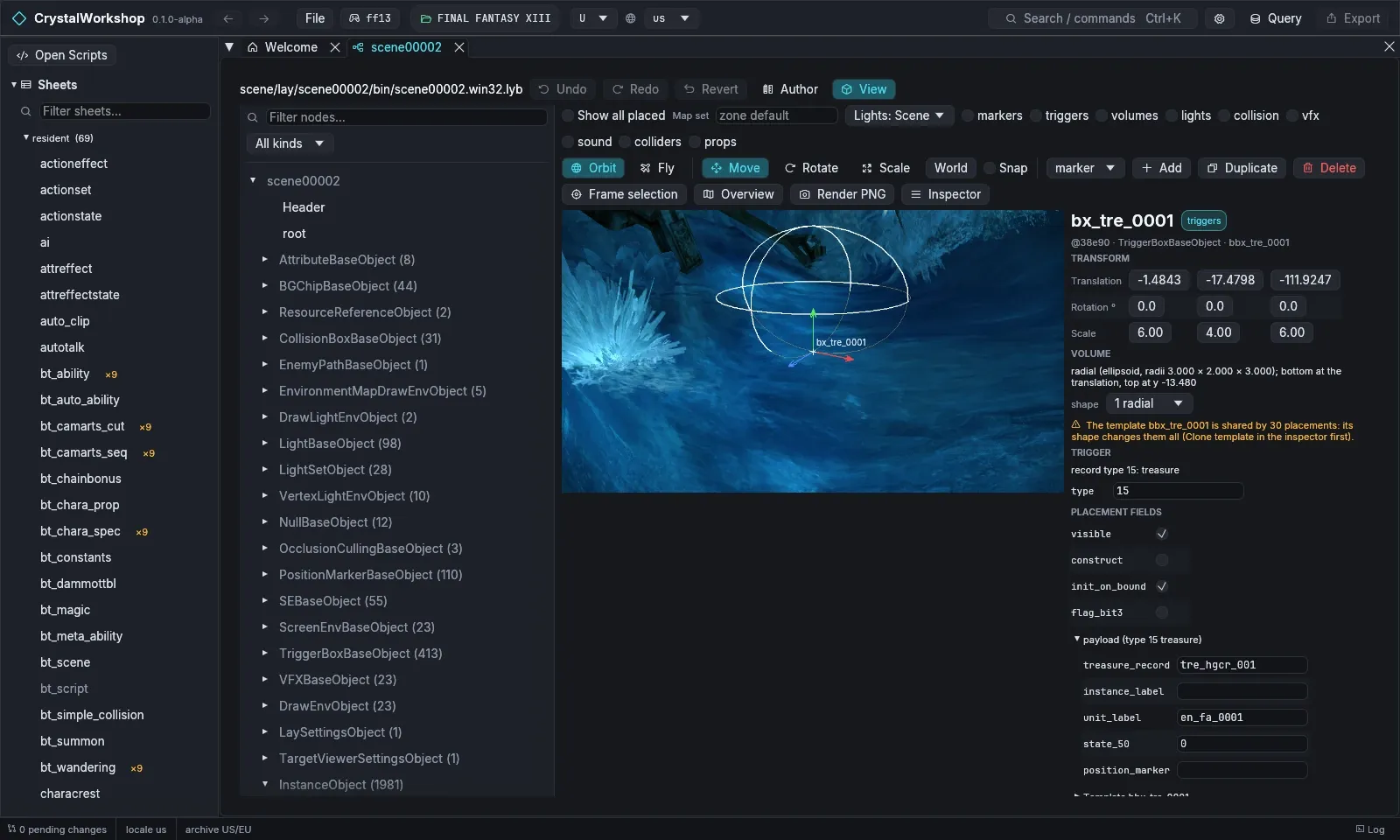
Select: click a placement in the viewport, or a node in the tree on the left (Filter nodes… and All kinds narrow the tree). The Inspector on the right shows:
- the placement’s transform;
- its volume or shape;
- its trigger or record type;
- PLACEMENT FIELDS;
- the typed payload, for example a treasure’s
treasure_record.
-
Move, rotate, scale:
- pick Move, Rotate or Scale (keys G, R, S);
- lock an axis with X, Y or Z;
- toggle World / local with L;
- turn Snap on to snap.
Or type values in the Inspector’s Translation, Rotation and Scale boxes. A warning says when a shape template is shared by other placements: clone the template first to change only this one.
-
Fields: edit any value in PLACEMENT FIELDS or the payload. Each edit is a pending change.
-
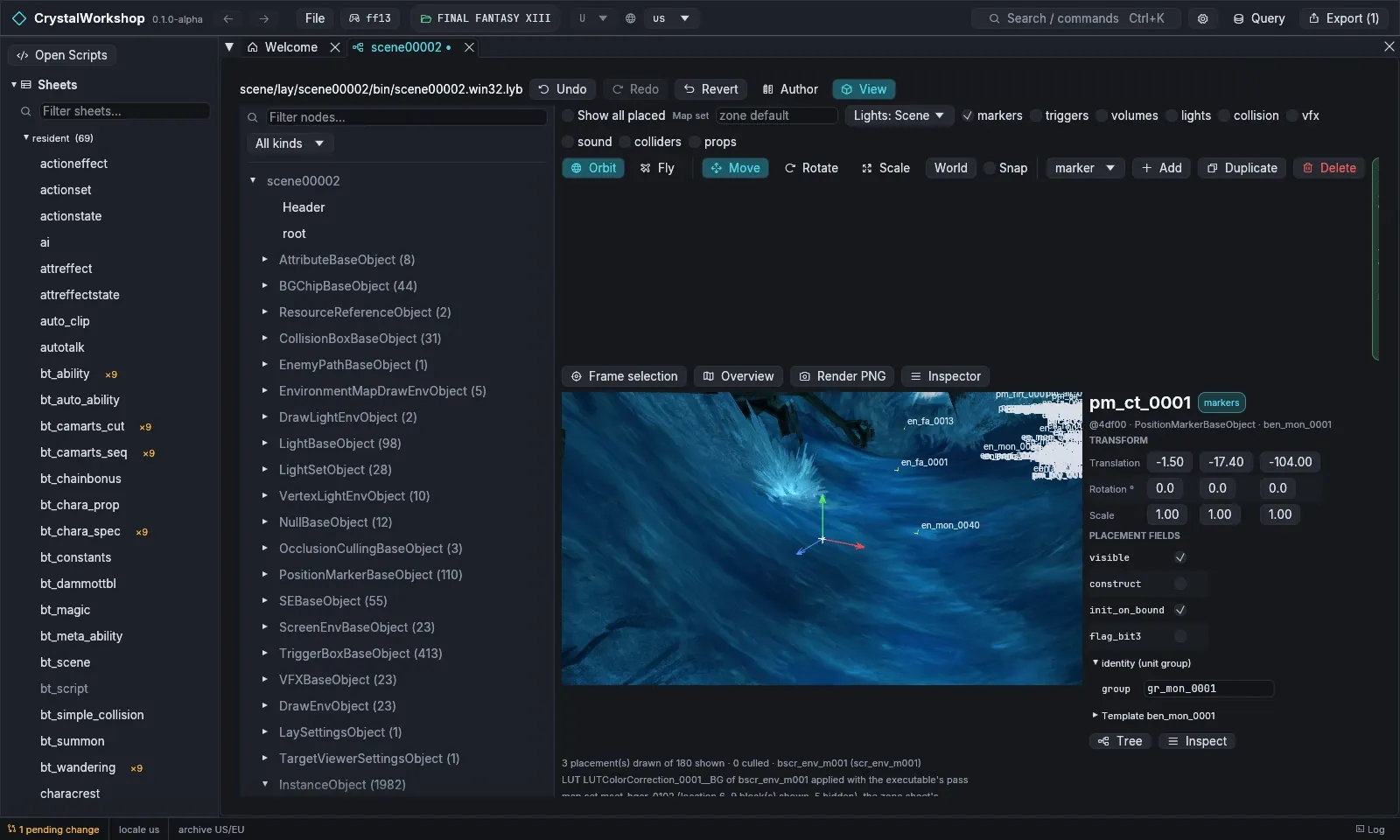
Add: choose a kind in the combo (marker, trigger, chip, screen_env, light, vfx, sound, collider, jump, menu, mission, placement), then Add. The new placement is selected. Duplicate copies the selection. Delete asks for confirmation.
-
Overlays: markers, triggers, volumes, lights, collision, vfx, sound, colliders and props draw helpers. Lights: Scene / Studio / Off picks the lighting.
-
Render PNG writes the current view to
<game>/ff13_studio/workspace/renders/.
Open a mod project’s changed zones
Section titled “Open a mod project’s changed zones”Import a shard or a mod project into the session:
- GUI: File › Open shard…, then Import as project, picks a
.cws. - Folder: a mod project directory can only be imported through MCP
import_binwith the folder path (Enabling MCP).
The imported scene edits are pending changes. Turn on Modified only in the Scenes tree to see the zones they touch, then open one in View.
XIII-2 and LR
Section titled “XIII-2 and LR”The same editor works on .xwp members. The FF13 layouts: sibling
badge means that a type’s meaning is assumed to match XIII and is not yet
verified for this game.
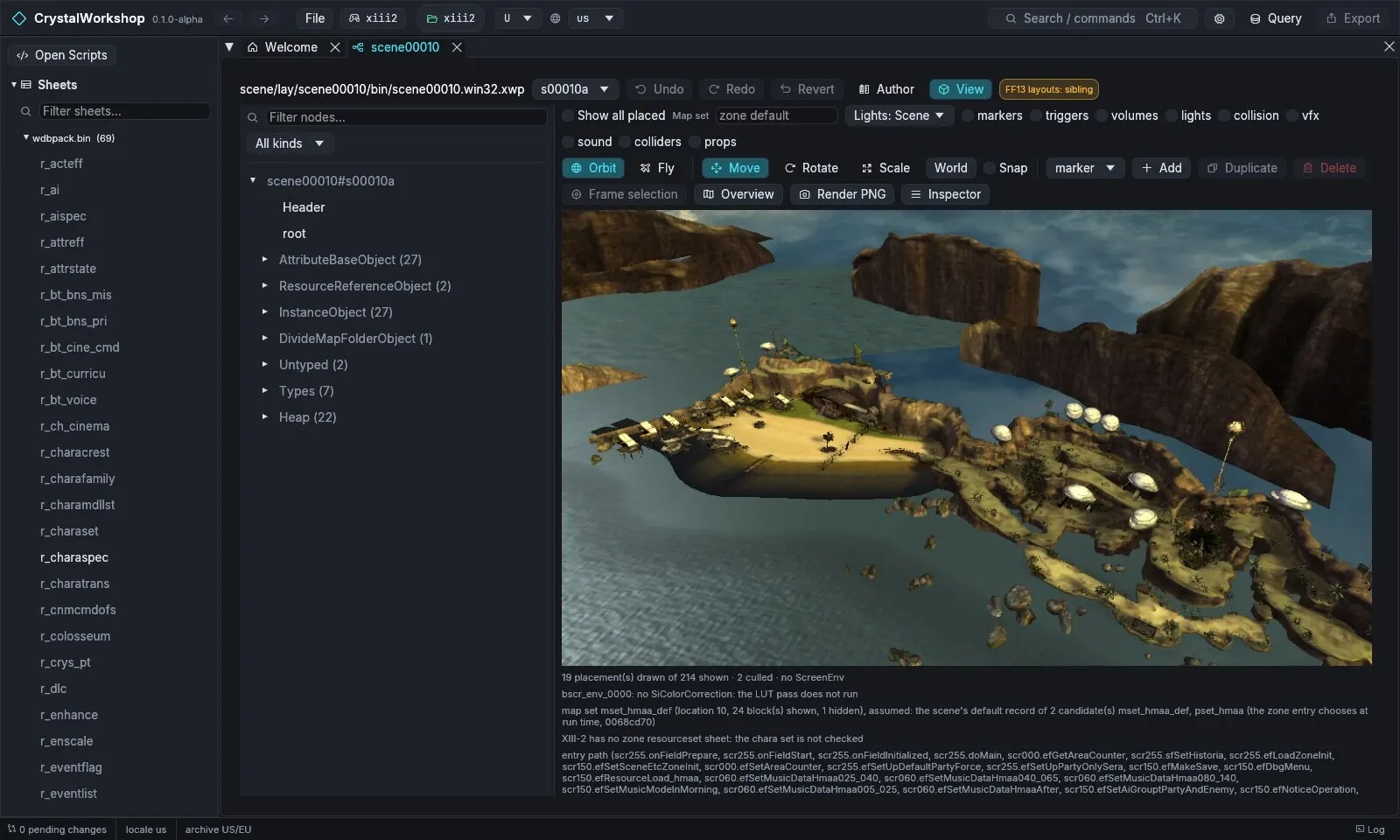
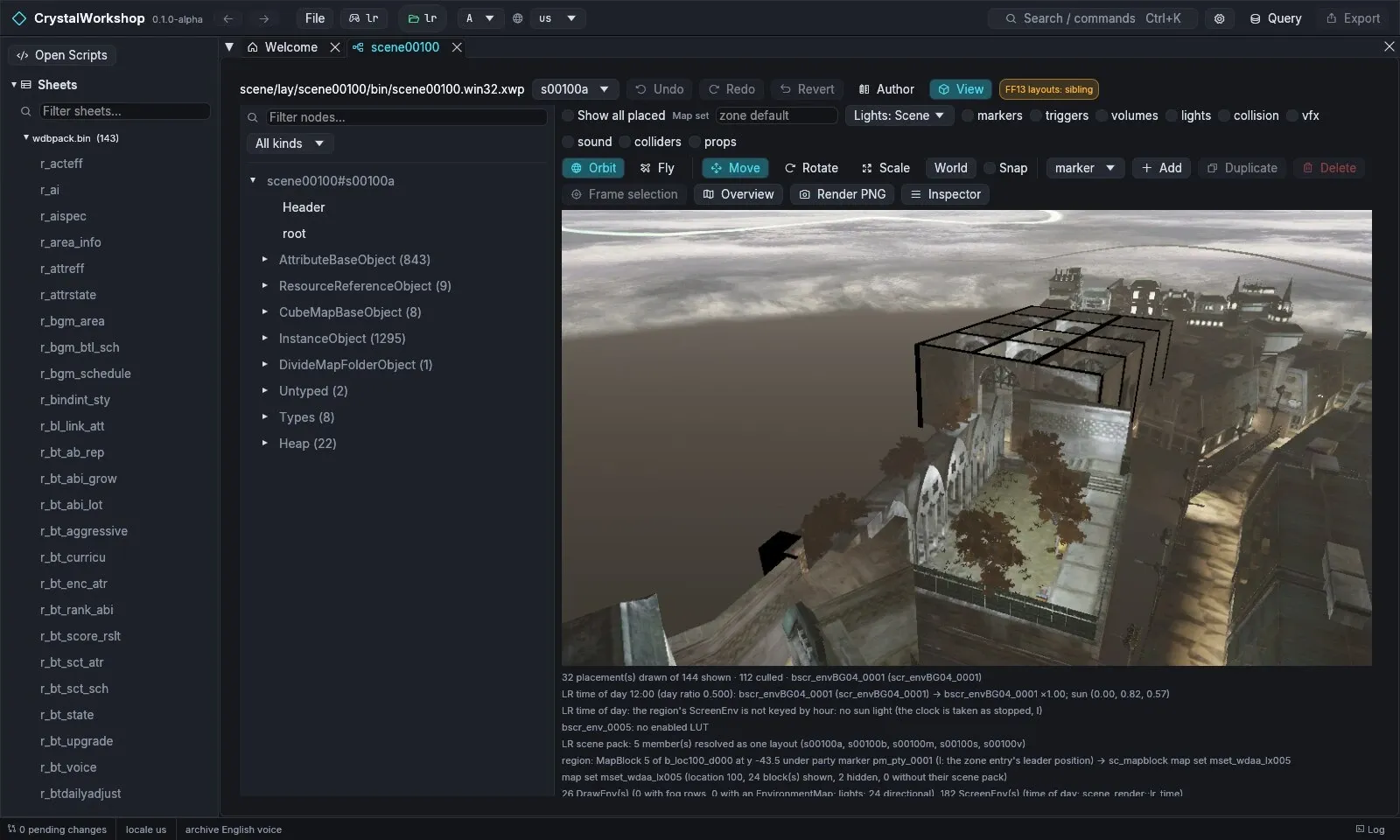
LR time of day. The View page renders LR scenes at noon, and the status
lines under the viewport show the hour and the ScreenEnv used. Other hours
are available only through MCP: scene op=render view={"lights":"scene@18"}.
They change the image only in regions whose ScreenEnvs are keyed by hour.
In the Luxerion layout below, the region is not keyed by hour, so every hour
looks the same.
Result
Section titled “Result”Edited layouts show as changed. The Changes page lists the .lyb /
.xwp. Export them with Simple Mod Export.
Undo / revert
Section titled “Undo / revert”Undo, Redo and Revert are in the scene toolbar. Revert returns the layout to the game’s original.
Known limits (Experimental)
Section titled “Known limits (Experimental)”- Rendering:
- XIII-2 and LR layouts and renders are Experimental.
- XIII-2 weather is the layout’s default; the UI has no weather selector.
- LR time of day is MCP-only, and its per-hour region tables are not traced yet.
- The View page lists what it does not reproduce. Examples include shadows, and glare and colour-correction formulas.
- Tools: the zone tool has no GUI page (MCP only).