
2. Make an edit
Your first edit: the Potion’s shop price. Both ways below make the same pending change; pick one.
-
Open the item sheet. In the navigator choose Sheets › resident › item, or press
Ctrl+Kand typeitem. The header showsdb/resident/item.wdband the typed badge (its columns are known).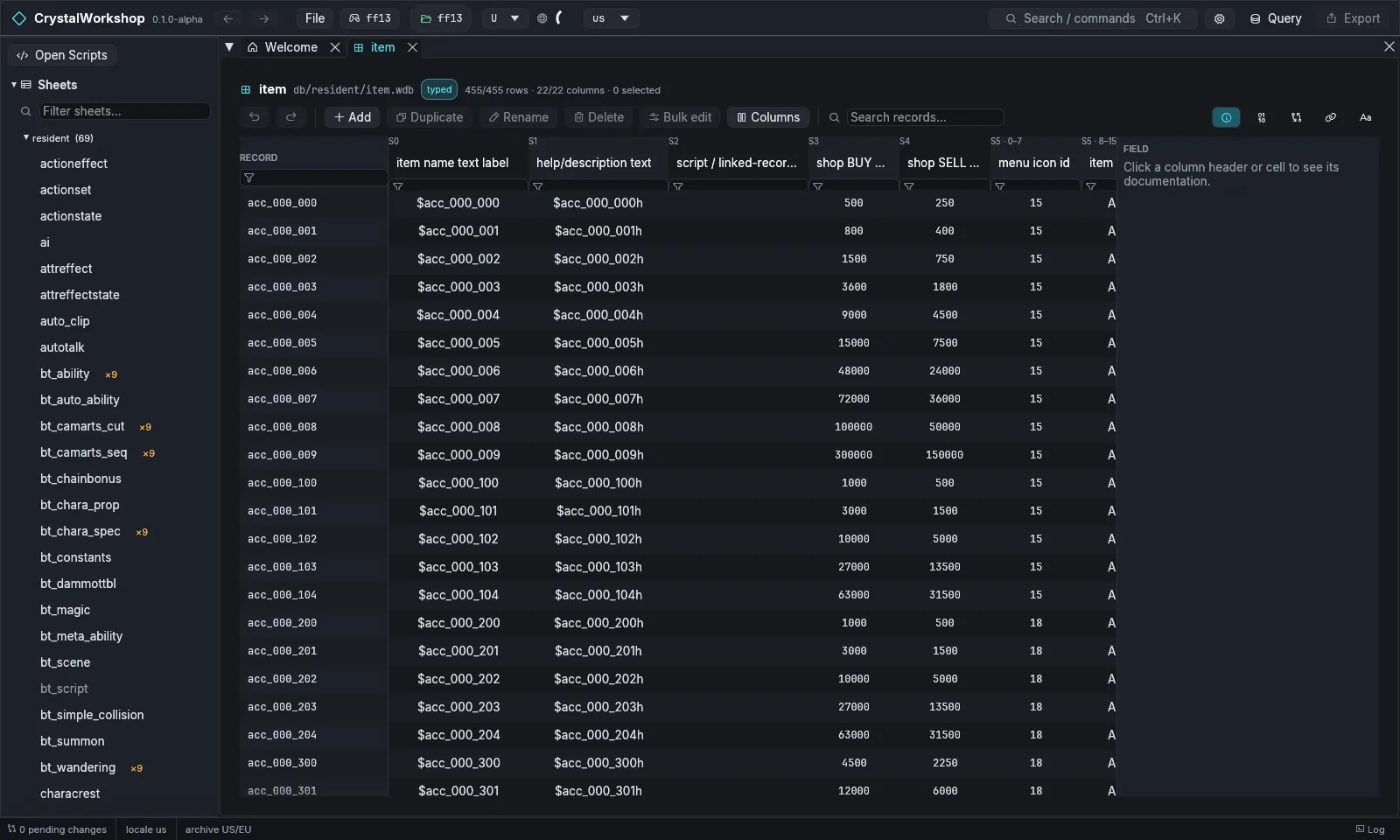
-
Find the Potion. Type
it_potionin Search records…. -
Change the price. Click its shop BUY cell (column
buy_price), type60and press Enter. Click a column header to read its documentation in the FIELD panel. -
Undo and Redo in the sheet toolbar take it back if you change your mind.
-
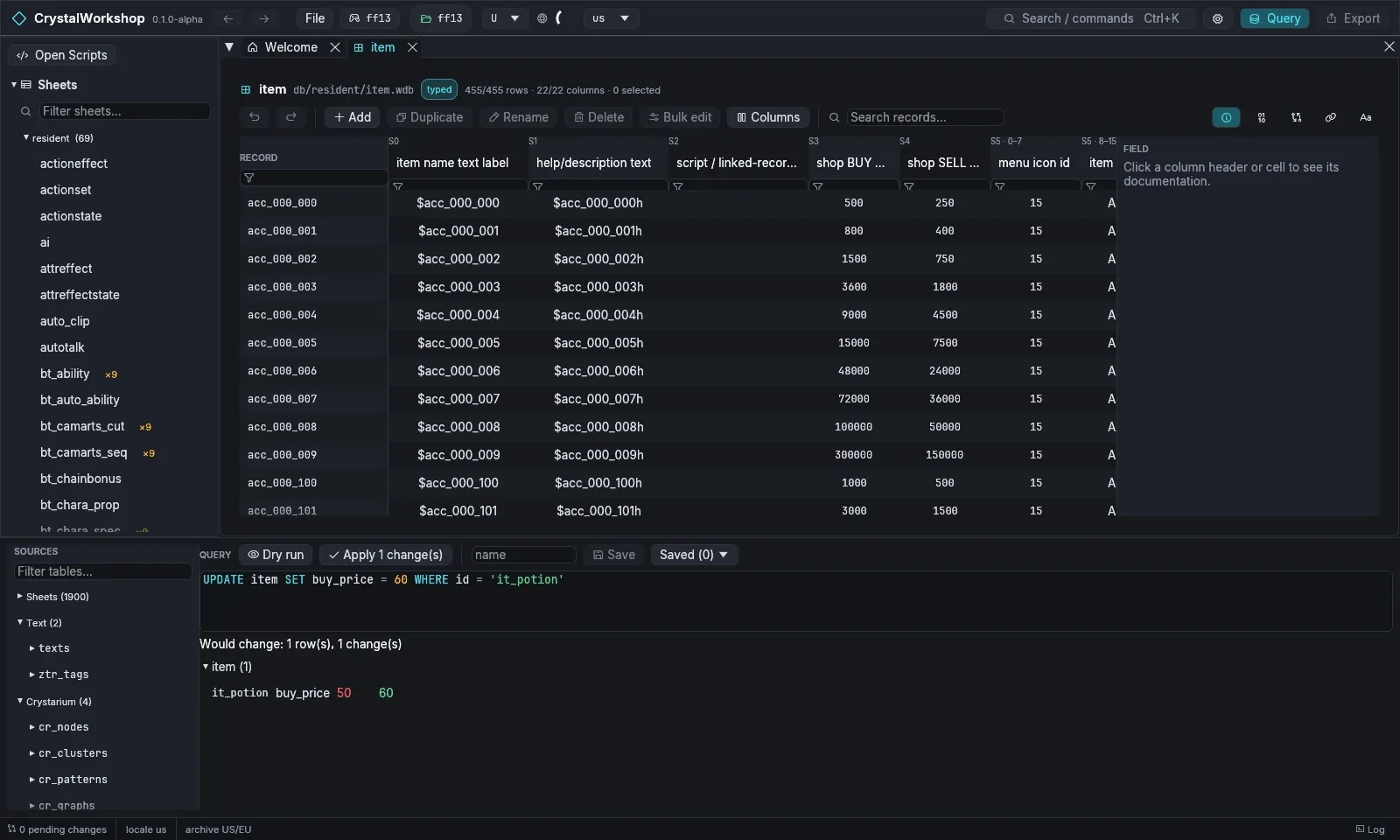
Open the Query panel with Query in the top bar. It lists every table under SOURCES: sheets, text, Crystarium and more.
-
Type the change and dry-run it:
UPDATE item SET buy_price = 60 WHERE id = 'it_potion'Dry run shows each change as row · column · old → new and writes nothing.
-
Apply it. Choose Apply 1 change(s). The change becomes a pending edit: the result reads
Applied: 1 row(s), 1 change(s)and the status bar shows1 pending change.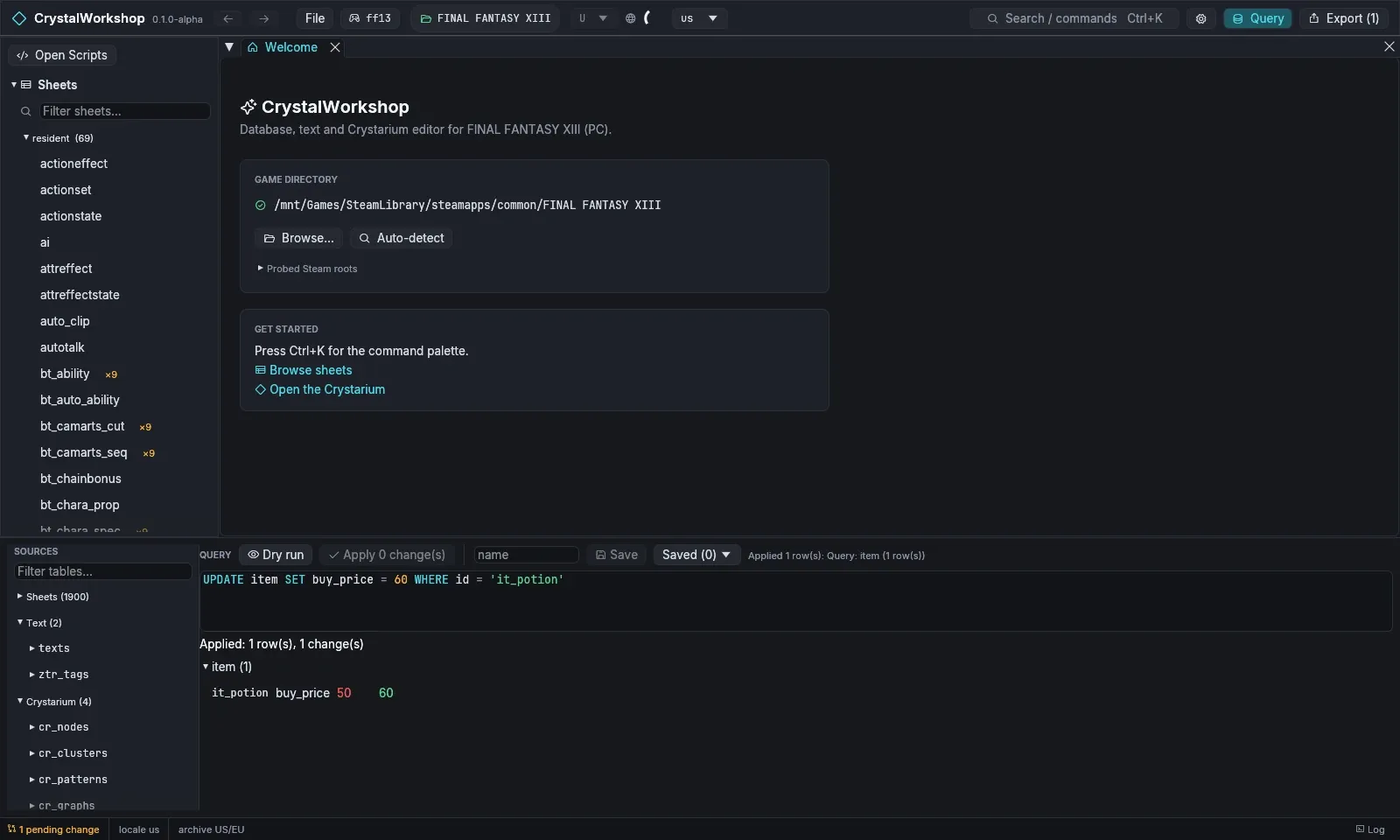
Result: the status bar shows 1 pending change, and Export (1) in the top bar is active. Nothing has reached the game yet.
More detail: Sheets and SQL. Next: 3. Review your changes.