
7. Update and remove mods
PulseDepot compares your list with what is installed, so every change shows up as a badge before you apply. The screenshots use example packages made for this guide.
Update a mod
Section titled “Update a mod”-
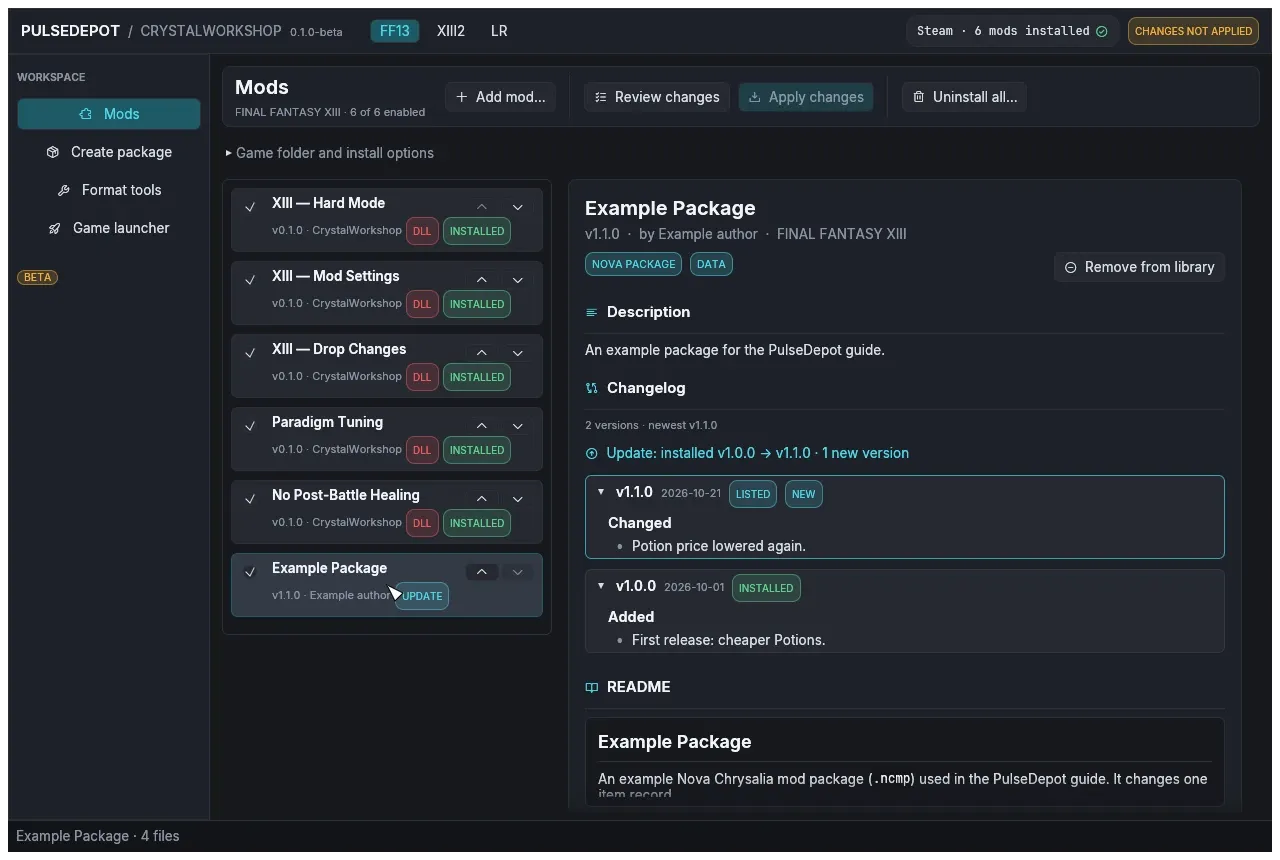
Add the newer file with Add mod… (or drop it on the window). It replaces the listed version in place and keeps its position in the load order.
-
Read what is new. The row shows UPDATE, and the changelog in the details panel labels the installed and the new versions, with the new releases highlighted.
-
Review changes, then Apply changes, with the game closed. Restart the game.
Roll back to an older version
Section titled “Roll back to an older version”-
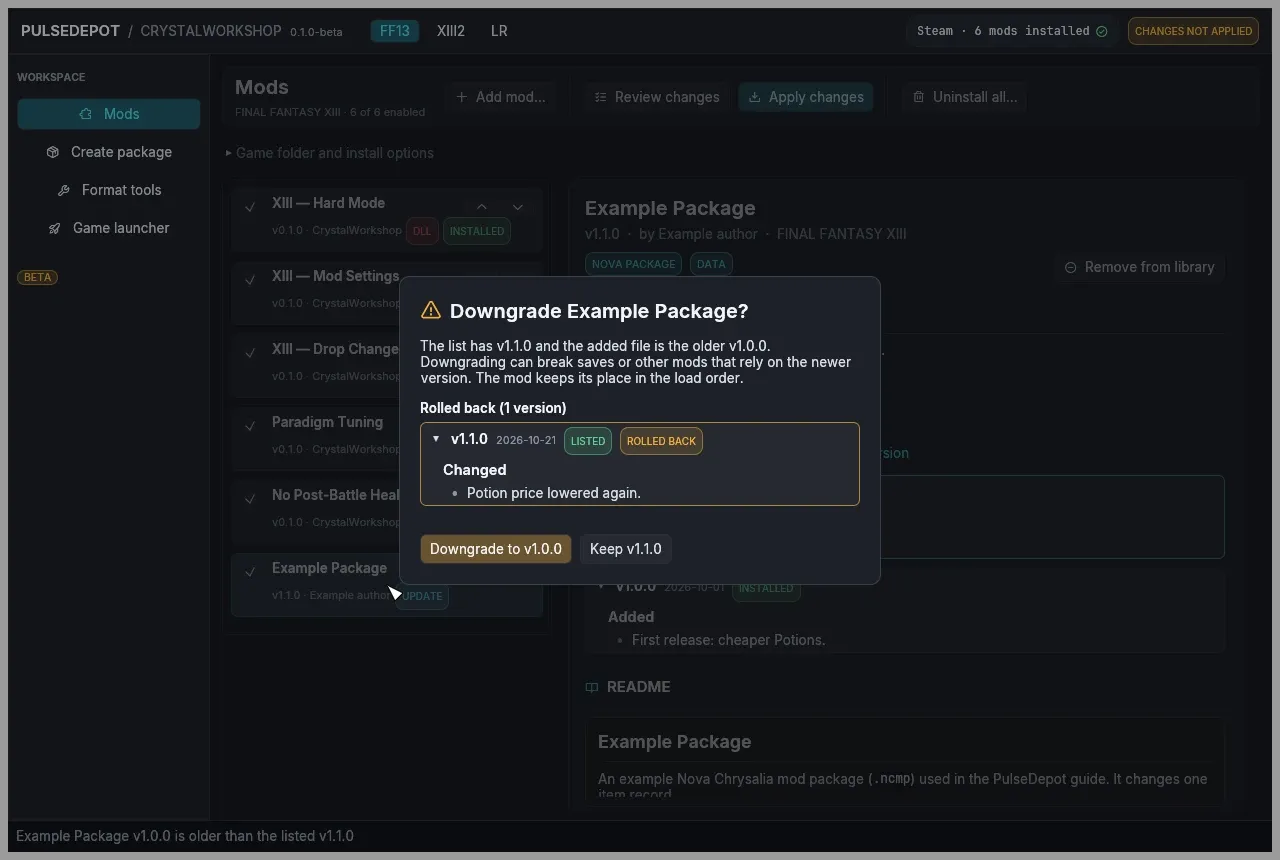
Add the older file. PulseDepot asks first, and lists the releases the downgrade rolls back.
-
Choose Downgrade to vX to put the older file in place, or Keep vY to keep what you have. The row then shows DOWNGRADE until you apply.
-
Review and apply. Downgrading can break saves or other mods that rely on the newer version: read the rolled-back changes before you confirm.
Adding the same version with different contents asks whether to replace the listed file.
Remove a mod
Section titled “Remove a mod”-
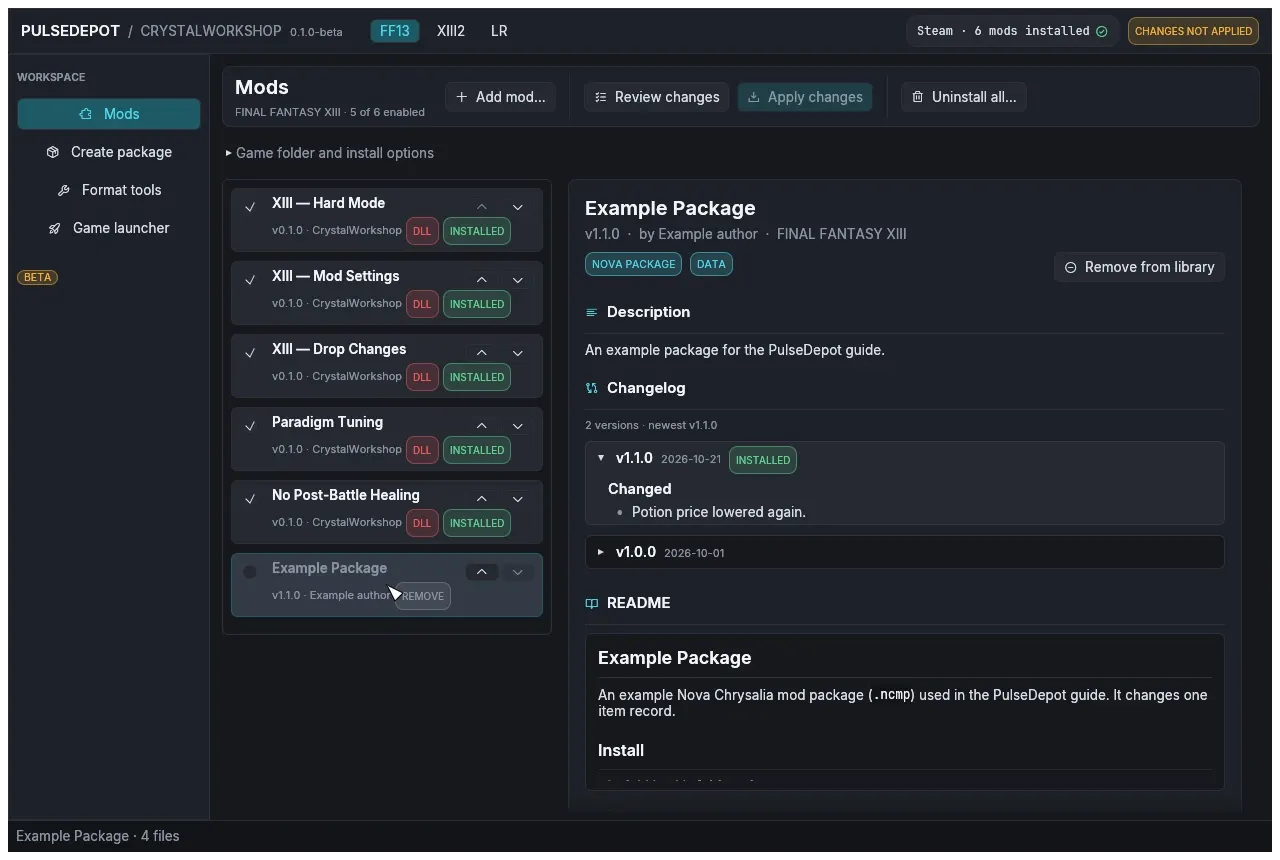
Untick the mod to keep it in your list but uninstall it, or select it and choose Remove from library to drop it from the list too. An installed mod that is disabled shows REMOVE.
-
Review changes, then Apply changes. Restart the game.
Your saves are never changed. Mods keep their settings in Crux’s own storage (mod-state.dat), not in your saves; the mods on this site get their settings back if you install them again.
Next: 8. Uninstall.