1. First setup
Goal: PulseDepot knows your game folder, and you know which Crux build it will install.
-
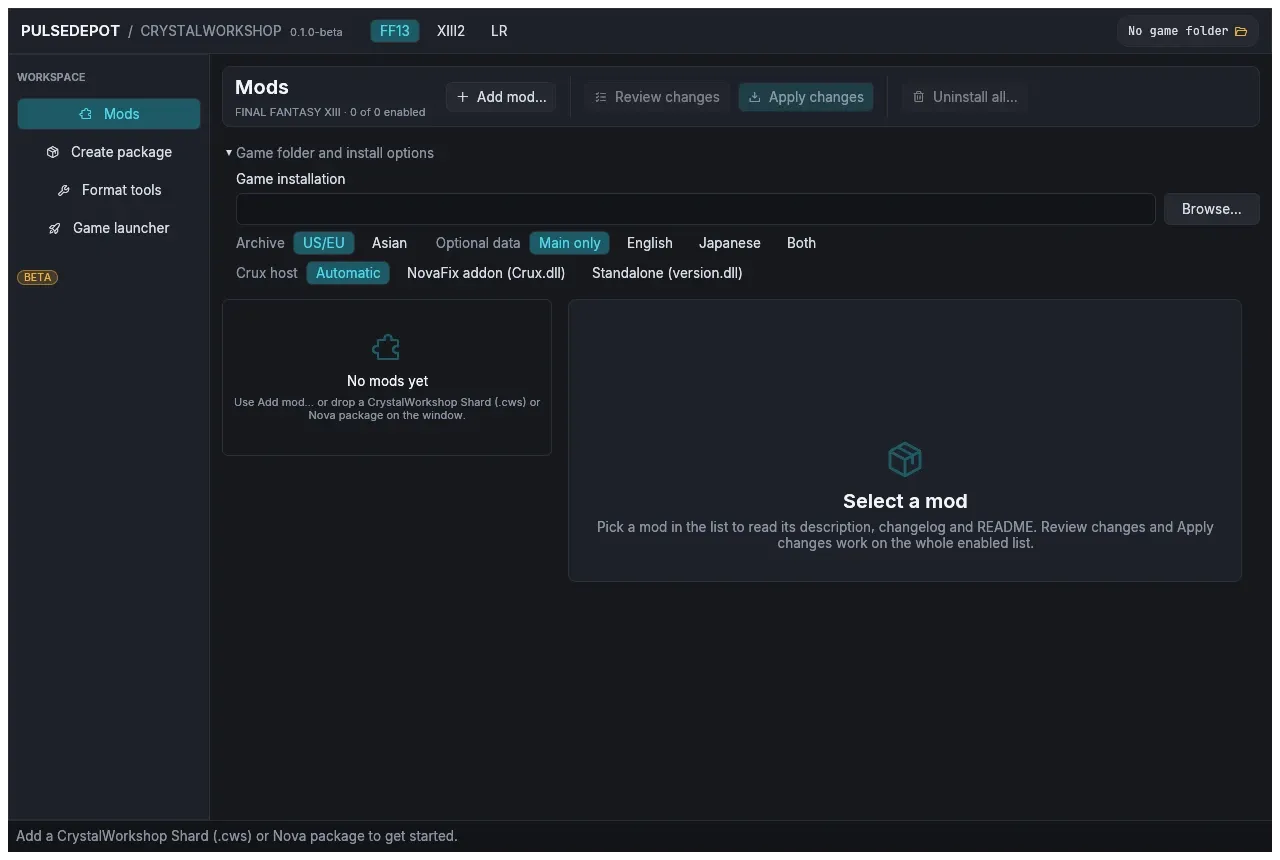
Start PulseDepot and pick the game. The FF13 / XIII2 / LR tabs at the top switch games. Each game keeps its own folder, mod list and launcher options.
On the very first start nothing is listed yet, and Game folder and install options is open.
-
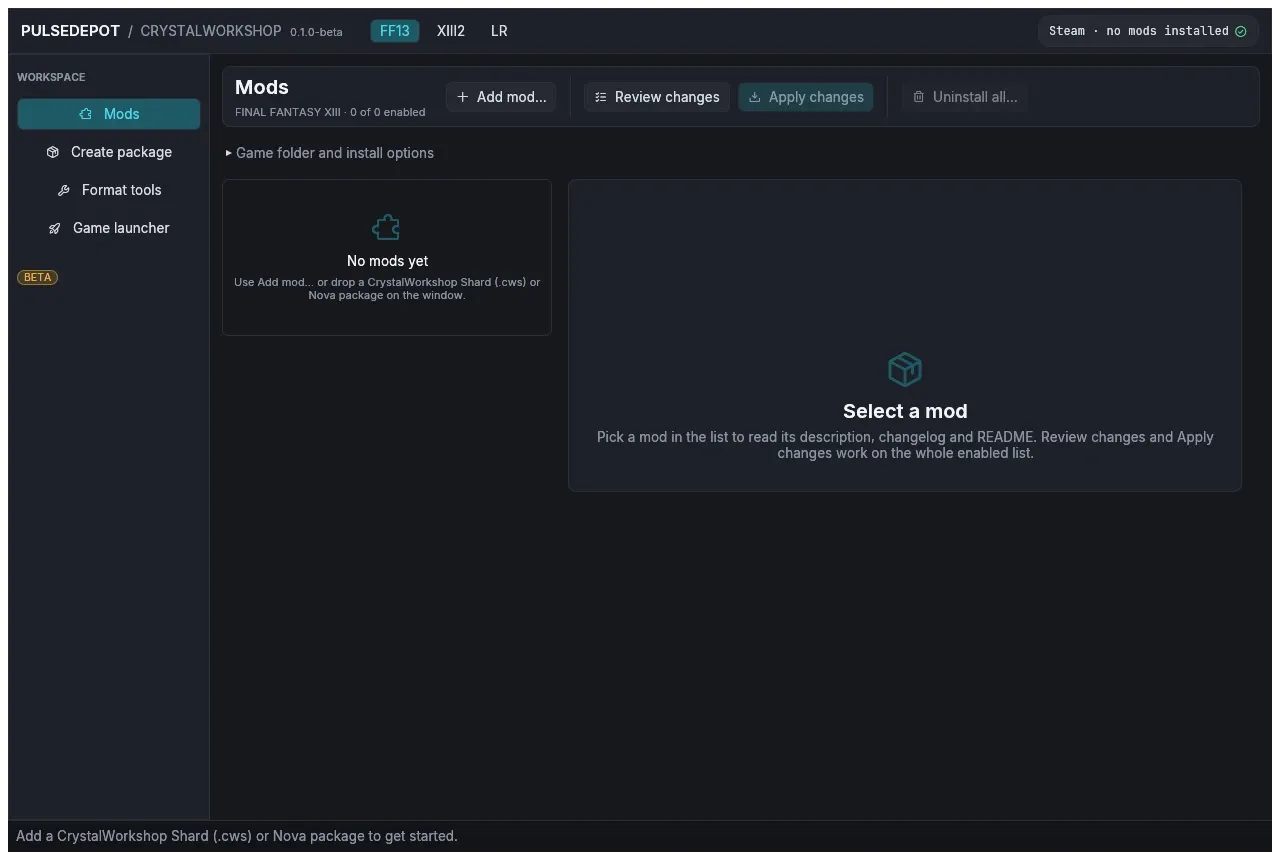
Check the game folder. If PulseDepot found your Steam install, the header reads
Steam · no mods installedand the folder is filled in. Otherwise choose Browse… in Game folder and install options and pick the folder that contains:white_datafor FINAL FANTASY XIII;alba_datafor FINAL FANTASY XIII-2;- the LR game files for LIGHTNING RETURNS.
-
Choose the archive and optional data. In Game folder and install options:
Option What it does Archive US/EU or Asian archives (LR: English or Japanese voice). Use the one your game runs. Optional data Install a mod’s English or Japanese voice/text data as well. 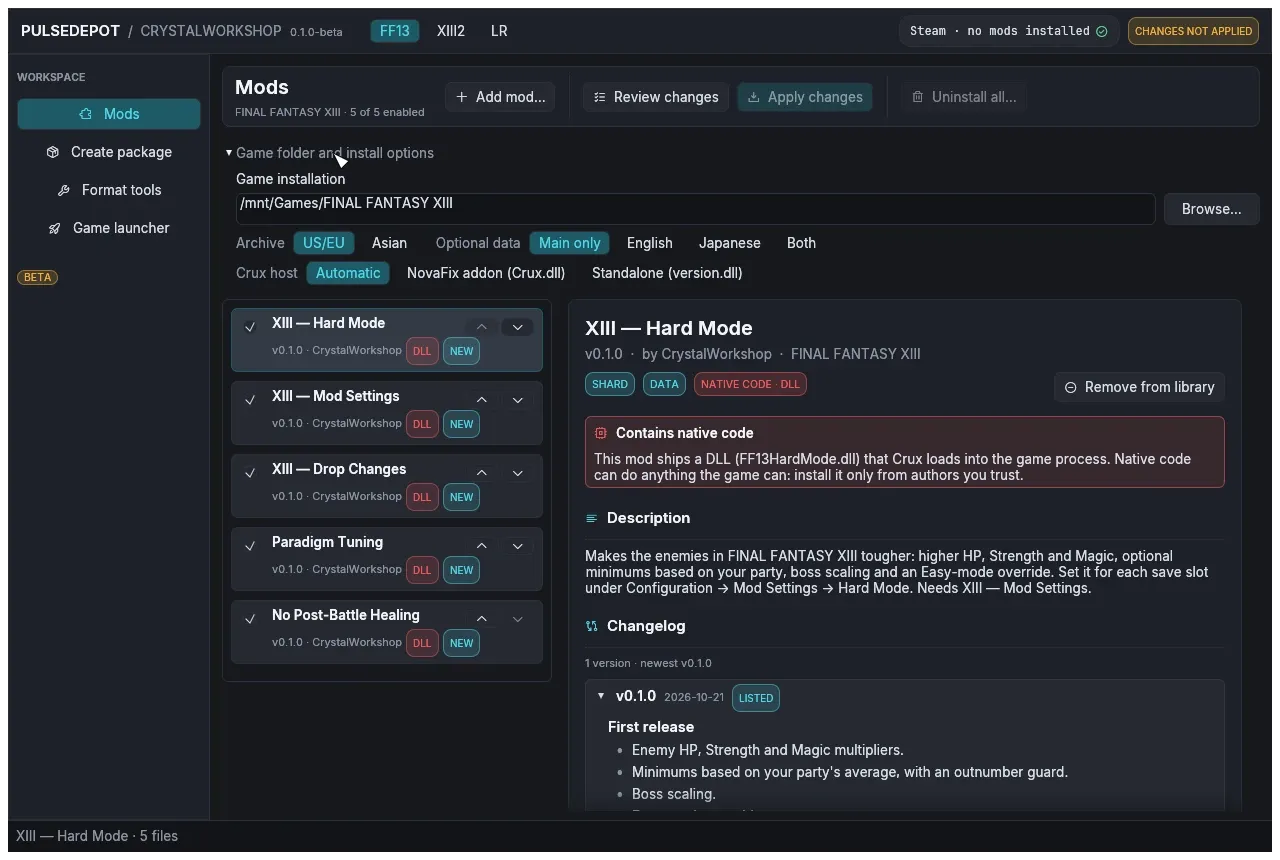
-
Choose how Crux runs. Crux host decides which Crux build PulseDepot installs when you apply:
- Automatic (the default): the NovaFix addon when NovaFix is installed (
d3d9.dllandNovaFix.inibeside the game executable), otherwise the standaloneversion.dll. - NovaFix addon (Crux.dll): always the addon. NovaFix’s own
d3d9.dllis never shipped or changed by PulseDepot. - Standalone (version.dll): always the standalone build, beside the game executable.
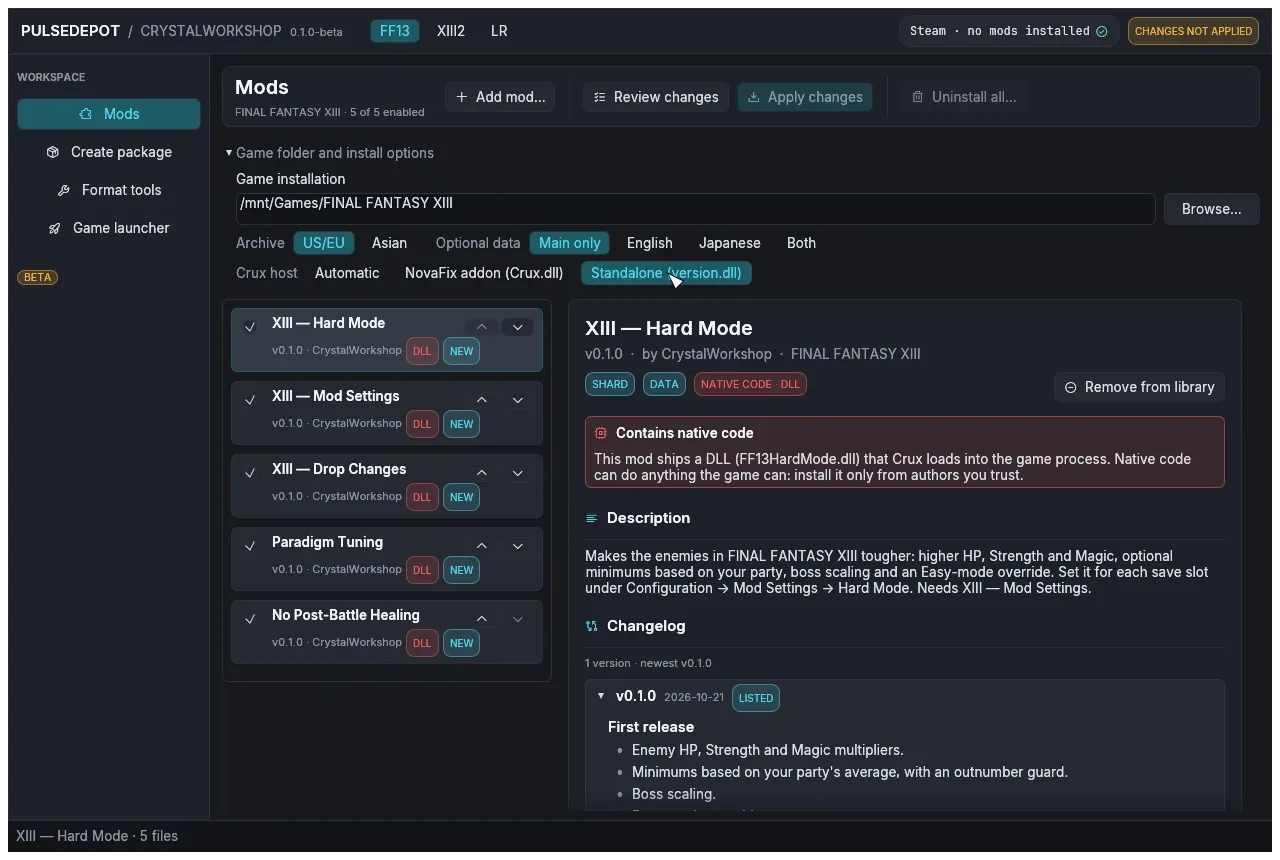
Keep Automatic unless you know you need one build. On Linux, the standalone build needs the Steam launch option
WINEDLLOVERRIDES="version=n,b" %command%(see Install). Standalone or NovaFix addon explains the difference. - Automatic (the default): the NovaFix addon when NovaFix is installed (
Result: the header names the game install and its edition. Nothing has been written yet: PulseDepot only writes when you choose Apply changes.
Next: 2. Install shard mods (.cws).