
3. Install Nova Chrysalia mods (.ncmp)
Many older mods for the trilogy were packaged for the Nova Chrysalia mod manager. PulseDepot reads those packages directly and merges them like shards. It never runs that mod manager’s own installer.
What a package looks like
Section titled “What a package looks like”A Nova Chrysalia package (.ncmp, or the same thing as a .zip) holds:
- a
modconfig.iniwith[ModPackConfig](Name, Author, Version, Summary, GameEntry) and[NovaChysaliaConfig]flags (DataPatch, ENPatch, JPPatch, CodePatch, ExtPatch); - folders
Data/,EN-Data/,JP-Data/,Code/*.nccporExternal/.
PulseDepot compares the package with your original game files when it reviews.
-
Choose Add mod… and pick the
.ncmpor.zip, or drop it on the window. It joins the same list as your shards. -
Select it to check its details. A package shows the badge NOVA PACKAGE, plus DATA, EN or JP for the folders it ships, its description, changelog (when it has one) and README.
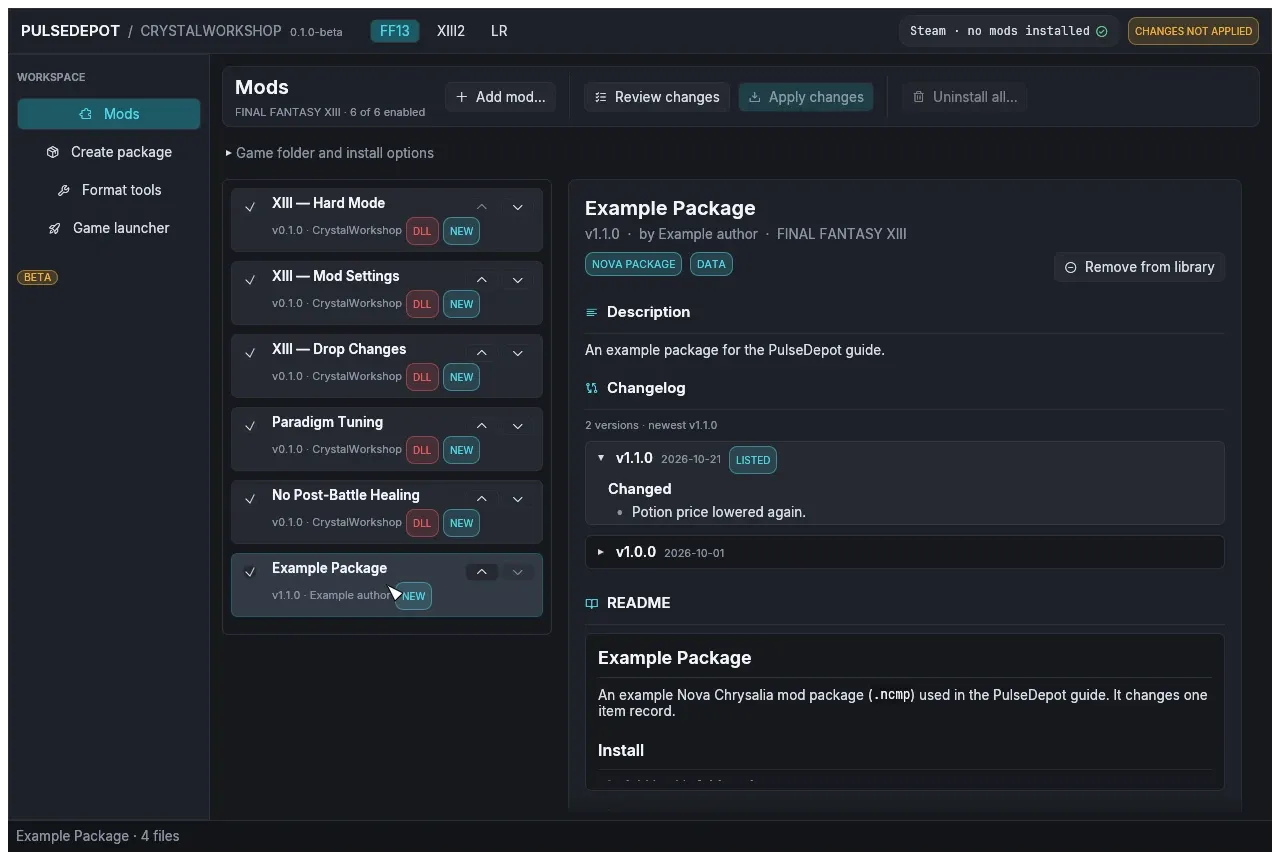
The screenshots on this page use a small example package made for this guide.
-
Put it in the right place in the load order. Mods lower in the list win conflicts. See Order, enable and resolve conflicts.
-
Review and apply as usual. See Review and apply.
Packages with an external setup
Section titled “Packages with an external setup”Packages that need an external setup (ExtPatch) cannot join the merged list. The list marks them SETUP. Install them alone from their details panel with External setup (this package only). On Linux this runs the package’s setup through a Wine executable you choose.
Script changes in packages
Section titled “Script changes in packages”PulseDepot stores the script (.clb) changes of a Nova Chrysalia package as byte patches. How script changes from several mods are combined depends on whether a JDK is installed: see Script mods and Java.