
Enabling MCP
Goal: let an AI client, such as Claude Code, Claude Desktop or Codex, read and edit your game data through CrystalWorkshop, either in the open app or headless with no window.
CrystalWorkshop serves the Model Context Protocol. AI clients use the same action layer as the UI. Their edits are ordinary pending changes: you see them on the Changes page (AI edits only), can undo them, and nothing reaches the game until an export.
Prerequisites
Section titled “Prerequisites”- CrystalWorkshop and
crystalwinstalled (Installing), and a game install. - An MCP client.
Option A: headless, over stdio (crystalw --mcp)
Section titled “Option A: headless, over stdio (crystalw --mcp)”crystalw runs the same server with no window. The protocol goes over
stdin/stdout, and logs go to stderr.
crystalw --mcp --game ff13 # or xiii2, lr; detected installcrystalw --mcp --game ff13 --root "/path/to/FINAL FANTASY XIII"crystalw --mcp --game lr --variant A --locale us --read-onlycrystalw --version # crystalw 0.1.0-alpha (CrystalWorkshop ALPHA)| Flag | Meaning |
|---|---|
--game ff13|xiii2|lr |
The game. A directory is also accepted, and taken as --root. |
--root <dir> |
The install folder. Default: the detected install. |
--variant U|C|A|V |
The archive variant: U/C for XIII and XIII-2, A/V for LR. |
--locale <l> |
The display locale for names (default us). |
--read-only |
AI clients can only read. |
--tools progressive|full |
Tool listing mode (below). --full-tools is the same as --tools full. |
--loose <dir> |
Read loose files instead of the archives. |
Claude Code:
claude mcp add crystalworkshop -- crystalw --mcp --game ff13or in a project .mcp.json:
{ "mcpServers": { "crystalworkshop": { "command": "crystalw", "args": ["--mcp", "--game", "ff13"] } }}Claude Desktop (claude_desktop_config.json, opened from
Settings › Developer › Edit Config). Use the full path to crystalw:
{ "mcpServers": { "crystalworkshop": { "command": "C:\\Tools\\CrystalWorkshop\\crystalw.exe", "args": ["--mcp", "--game", "ff13"] } }}Codex (~/.codex/config.toml):
[mcp_servers.crystalworkshop]command = "crystalw"args = ["--mcp", "--game", "ff13"]Option B: the open app, over HTTP
Section titled “Option B: the open app, over HTTP”-
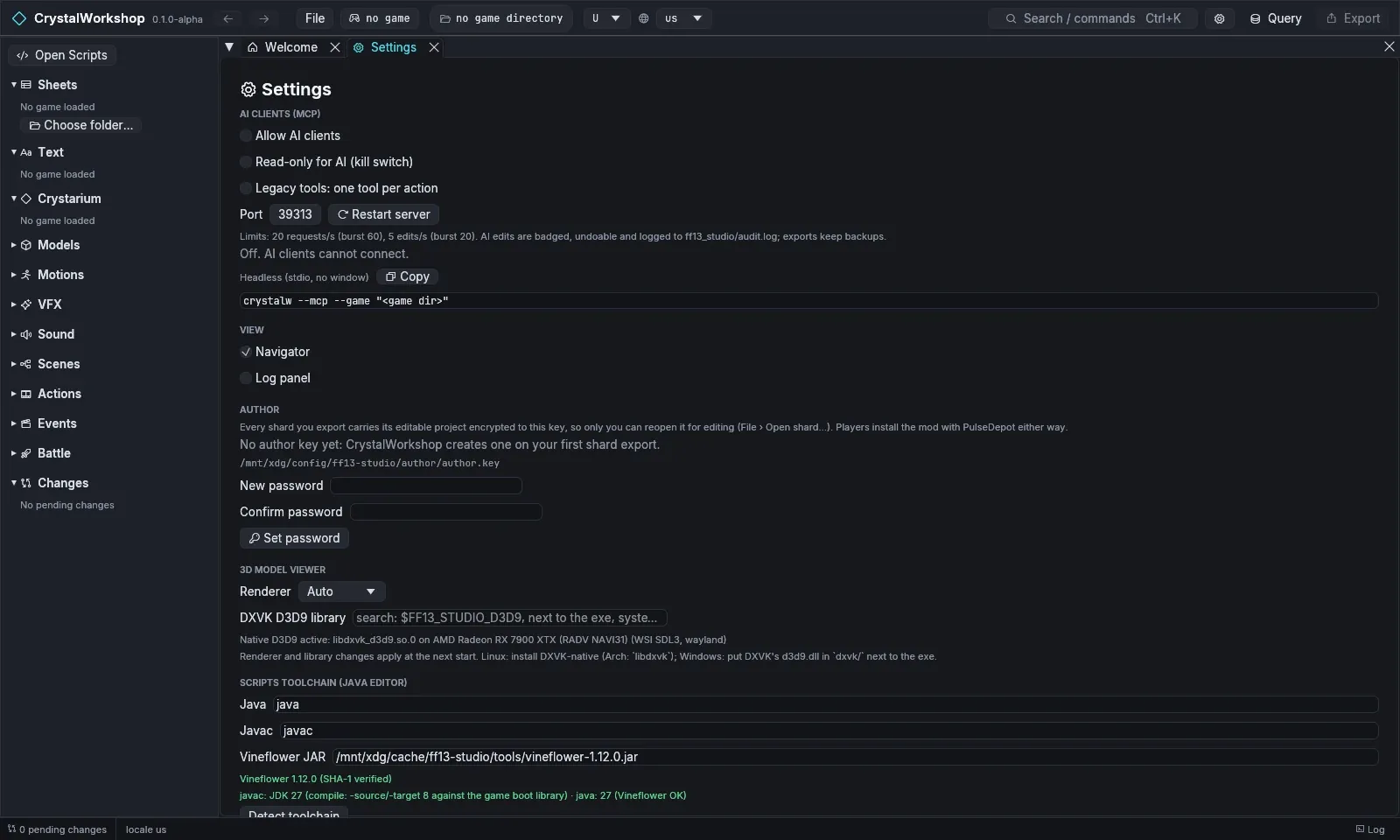
Open Settings (the gear button, or
Ctrl+K› Open Settings) › AI clients (MCP). -
Tick Allow AI clients. The server listens on
http://127.0.0.1:39313/mcp; change the port and choose Restart server if you need to. The page shows a random bearer token. Regenerate replaces it, and clients then need the new one. -
Copy a ready-made snippet from the page. They cover Claude Code (command and
.mcp.json), Codex and the headless form. For example:Terminal window claude mcp add --transport http crystalworkshop http://127.0.0.1:39313/mcp \--header "Authorization: Bearer <token>" -
Read-only for AI (kill switch) keeps clients reading while every edit and export fails.
Progressive tool discovery
Section titled “Progressive tool discovery”By default (progressive), the server lists a small core set of 17
tools:
-
The lean tools:
query,status,undo,export,script,model,scene,vfx,acb. -
The game tools:
detect_game_installs,get_active_game,switch_game. -
Five discovery tools:
Tool Does list_tool_groupsLists the domain groups ( game,query,sheets,texts,links,crystarium,changes,scripts,assets, …).search_toolsFinds a tool by words in its name, group or description. describe_toolReturns a tool’s full description and input schema. enable_tool_groupAdds a group’s tools to the list and notifies the client ( tools/list_changed).call_toolRuns any tool, listed or not.
The full catalog (70 tools) stays reachable without filling the model’s
context. --tools full, FF13_MCP_TOOLS=full or Settings › Legacy
tools lists everything at once instead.
A short session (real output, XIII):
status → …/FINAL FANTASY XIII · U · us · 0 pending (0 AI)query {"sql":"SELECT id, buy_price FROM item WHERE id = 'it_potion'"} → id buy_price it_potion 50query {"sql":"UPDATE item SET buy_price = 60 WHERE id = 'it_potion'"} → dry-run 1 row(s), 1 change(s); dry_run=false applies table row column old new item it_potion buy_price 50 60search_tools {"query":"text","limit":5} → list_texts, read_text, set_text, add_text_entry, delete_text_entry (group texts, not listed yet; 22 matches)enable_tool_group {"group":"texts"} → the texts tools are listed from now onWhat the AI can and cannot do
Section titled “What the AI can and cannot do”Can:
- Read everything the UI reads: sheets, text, scripts, models, VFX, scenes, actions, links.
- Run SQL (writes are previewed by default;
dry_run:falseapplies them). - Edit through the same editors: fields, text, scripts (compile), scene placements, VFX fields.
- Render models and scenes to PNG.
- Export loose files or a
.cwsshard.
Cannot:
- Write save files, or install mods into the game. PulseDepot does that, and only when you apply.
- Bypass Read-only for AI, or
--read-only. - Unlock a password-protected author key. Reopening your own shards needs you, in the app.
- Do things the UI refuses. The same guards apply, for example unverified
XIII-2/LR export routes need explicit consent (
allow_unverified).
Every AI action is recorded in <game>/ff13_studio/audit.log. Edits stay
pending until exported, and undo reverts them.
Undo / revert
Section titled “Undo / revert”- Use
undo(MCP), or the editors’ Undo and the Changes page (filter AI edits only). - Untick Allow AI clients to stop the server.
Related
Section titled “Related”Simple DB Edit · Simple Mod Export · FAQ and Troubleshooting