Model Edit
Goal: inspect a character model (Lightning, c001): its meshes,
materials and textures. Then render it, and edit it through a glTF
workspace.
Prerequisites
Section titled “Prerequisites”- A game open (First Run and Game Setup).
- DXVK and a GPU driver with Vulkan 1.3 support for the game-shader preview (Installing). Without them, the Fallback (wgpu) renderer draws an approximation.
- For editing: a 3D tool that can round-trip glTF (
.glb), such as Blender, and an image editor.
Steps: inspect
Section titled “Steps: inspect”-
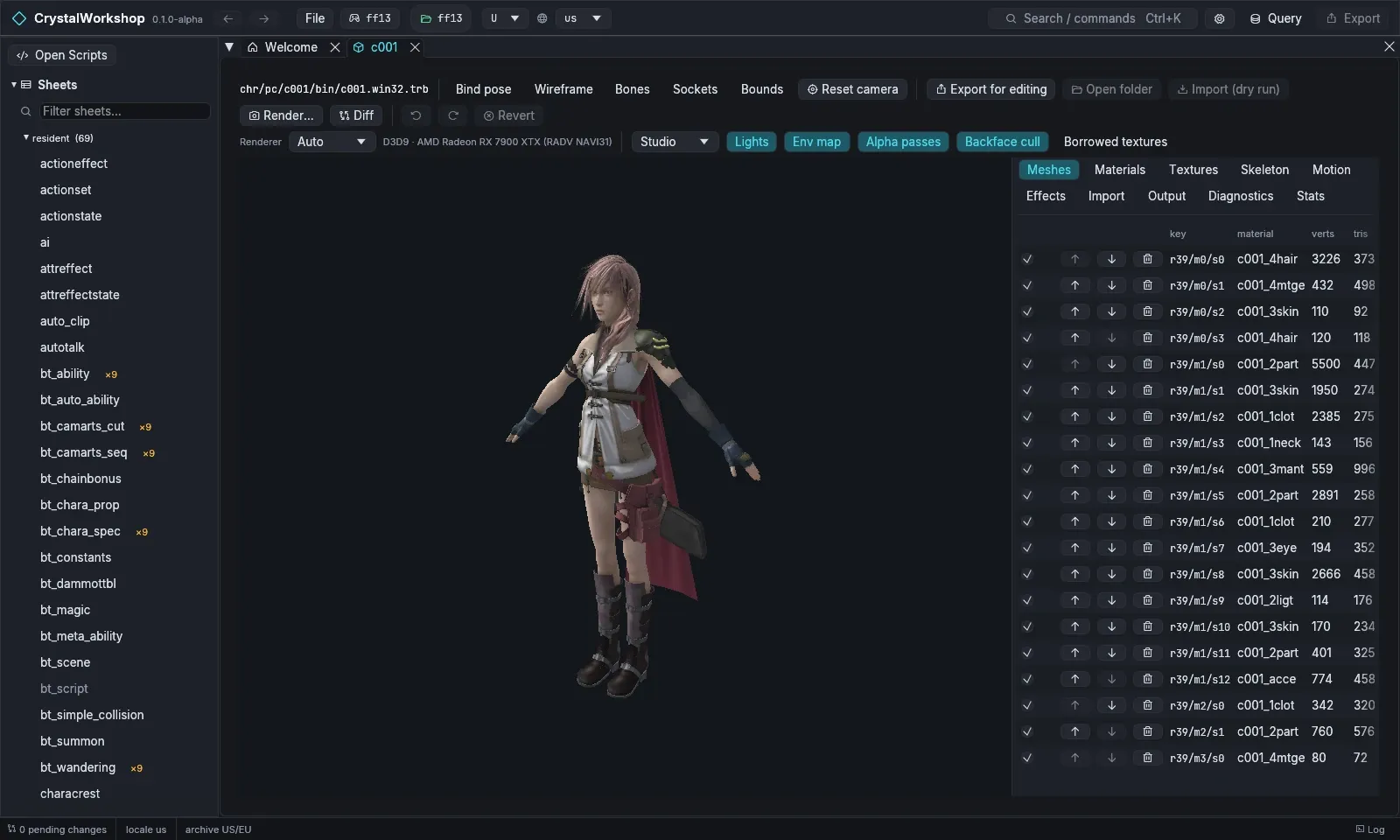
Open Models in the navigator and pick
chr/pc/c001/bin/c001.win32.trb(Ctrl+K, then typec001). -
The viewport draws the model with the game’s own shaders when Renderer is Auto or D3D9 (game shaders). The status next to it names the device.
- Toggles: Lights, Env map, Alpha passes, Backface cull, Borrowed textures.
- Views: Bind pose, Wireframe, Bones, Sockets, Bounds.
- Studio chooses the light preset.
-
The right column has these panels:
Panel Shows Meshes Each mesh with its material, vertex and triangle counts. Hide, reorder (↑ ↓) or delete meshes. Materials Shader parameters (PRAM). Textures Each texture, to view or replace. Skeleton Joints. Motion Play clips from the model’s motion packs. Effects VFX attached to the model. Import The import report (see below). Output The model’s files. Diagnostics Problems found reading the model. Stats Counts and sizes. -
Render… writes a PNG. Diff compares your edit with the original.
Steps: edit through glTF
Section titled “Steps: edit through glTF”-
Choose Export for editing. CrystalWorkshop writes a workspace to
<game>/ff13_studio/workspace/models/<game>/<archive path>/. Open folder opens it. The workspace holds:File Edit it? model.glbYes textures/*.pngYes model.ff13.jsonNo (the sidecar) model.objNo (inspection only) manifest.jsonNo -
Edit
model.glb:- You can change: vertex positions, normals, UVs, colours and skin
weights (with the same counts); material parameters in
extras.ff13.params; joint rest poses; sockets. - You can also delete or reorder primitives (meshes), and edit a texture PNG at the same size.
- Keep the
_FF13_VIDattribute andextras.ff13.keywhen your exporter allows it.
- You can change: vertex positions, normals, UVs, colours and skin
weights (with the same counts); material parameters in
-
Choose Import (dry run). The report rates the import:
- Tier A: the change patches the existing model safely, and Apply stages it.
- Tier B: adding vertices, triangles, materials or bones is not applied yet.
- Rejected: for example, a stale workspace from before another edit. Export again.
-
Choose Apply. The model becomes a pending change.
Result
Section titled “Result”The Changes page lists the model’s .trb and .imgb. Export them with
Simple Mod Export.
Undo / revert
Section titled “Undo / revert”Undo, Redo and Revert are in the model toolbar. Revert returns the model to the game’s original. The workspace folder stays until you delete it.
Known limits (Experimental)
Section titled “Known limits (Experimental)”- Model writes for XIII-2 and LR are not verified in game.
- XIII-2 and LR background blocks borrow textures from other blocks, and the preview shows them as borrowed.
- Only Tier A imports apply. Tier B changes are reported but not written.
- New motion packs are XIII only.