6. Launch the game
After Apply, your mods are already on disk. Start the game the way you always do, or from PulseDepot.
-
Restart the game after every Apply. Crux reads the Crux image when the game starts.
-
Start the game from Steam as usual, or open Game launcher in PulseDepot and choose Launch with Steam. The launcher runs
steam -applaunch <app id>with the options shown there: resolution, fullscreen, Japanese voices, shadow resolution, MSAA and swapped confirm/cancel buttons. LR has no display options.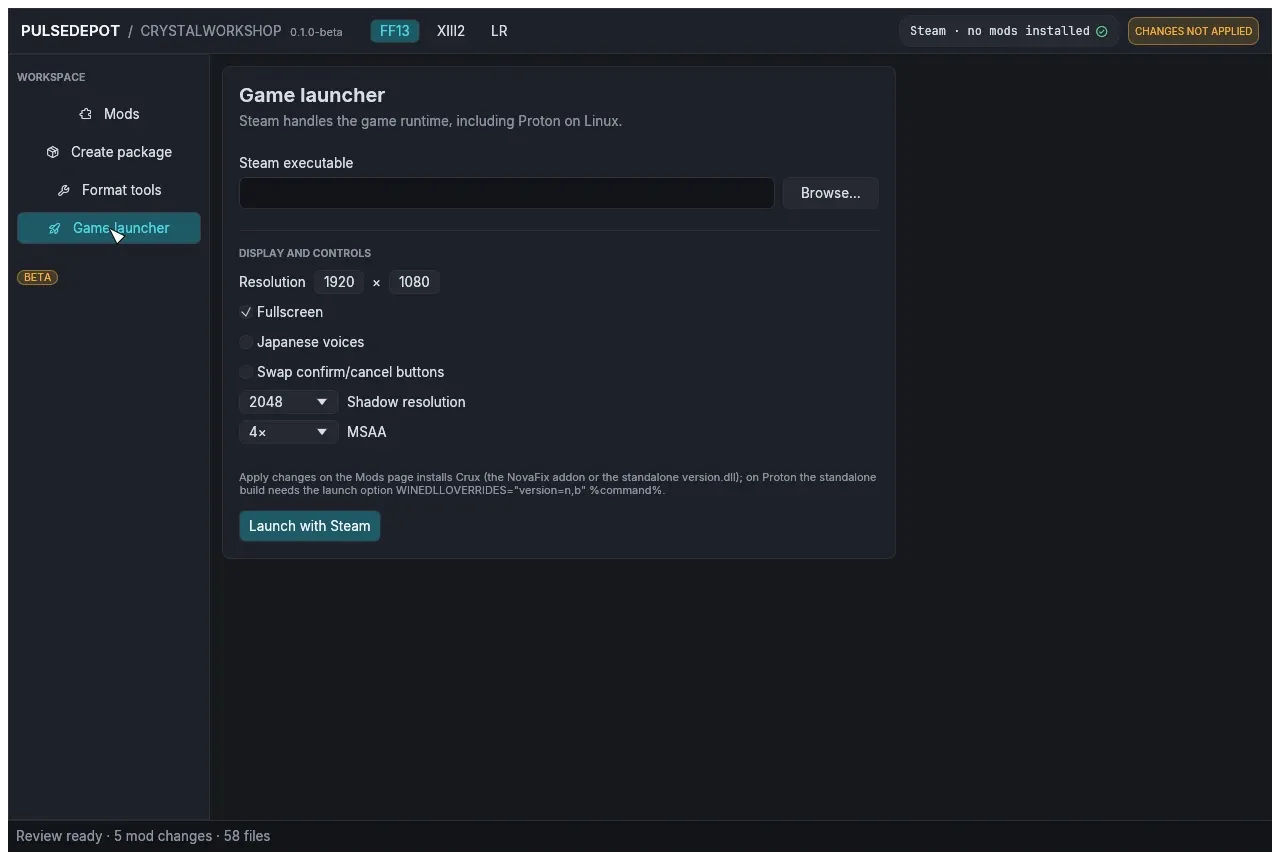
On Windows without a known
steam.exe, PulseDepot opens asteam://rungameidlink instead, and these options do not apply. -
Check that the mods loaded. Mods with in-game settings, such as Hard Mode, add their pages under Configuration › Mod Settings (with XIII Mod Settings installed). If nothing changed in game, see Troubleshooting.
Platform notes
Section titled “Platform notes”Nothing extra is needed: Crux is either the NovaFix addon or the standalone version.dll beside the game executable, and the game loads it on start.
With the standalone Crux under Proton, keep this in the game’s Steam launch options (Properties › General › Launch options):
WINEDLLOVERRIDES="version=n,b" %command%Without it, Proton uses Wine’s own version.dll and Crux never loads. With the NovaFix addon, keep whatever NovaFix itself needs.
Playing offline (Steam Offline Mode)
Section titled “Playing offline (Steam Offline Mode)”PulseDepot and Crux need no internet connection: Apply works from the files you added, and Crux reads the Crux image from your game folder when the game starts. Nothing is downloaded at launch.
To play without a connection, put Steam in Offline Mode (Steam menu › Go Offline…), then start the game from your Steam library or with Launch with Steam in PulseDepot. Both go through the Steam client, which starts the game the same way in Offline Mode. Steam’s own rules apply: Offline Mode only works after Steam has been online once on this PC with your account remembered.
Next: 7. Update and remove mods.